A mobile fingerprint device is a small, handheld, portable fingerprint scanner—either built into a mobile terminal (such as a mobile POS or handheld ID device) or connected as an external reader—that captures fingerprint images and compares them against a database or enrolled templates for identity verification. These devices are widely used by law enforcement officers, government staff, and field workers to quickly and accurately verify people’s identities for tasks like voter registration, financial transactions, and border checks.
Because these devices often operate in less-than-ideal environments (outdoors, in vehicles, at busy retail counters), simple factors like finger condition, sensor cleanliness, and user handling can dramatically affect performance and reliability. By following structured best practices, organizations can reduce failed scans, speed up workflows, and strengthen the overall security of their biometric processes.
Tip 1: Keep Fingers Clean and Dry
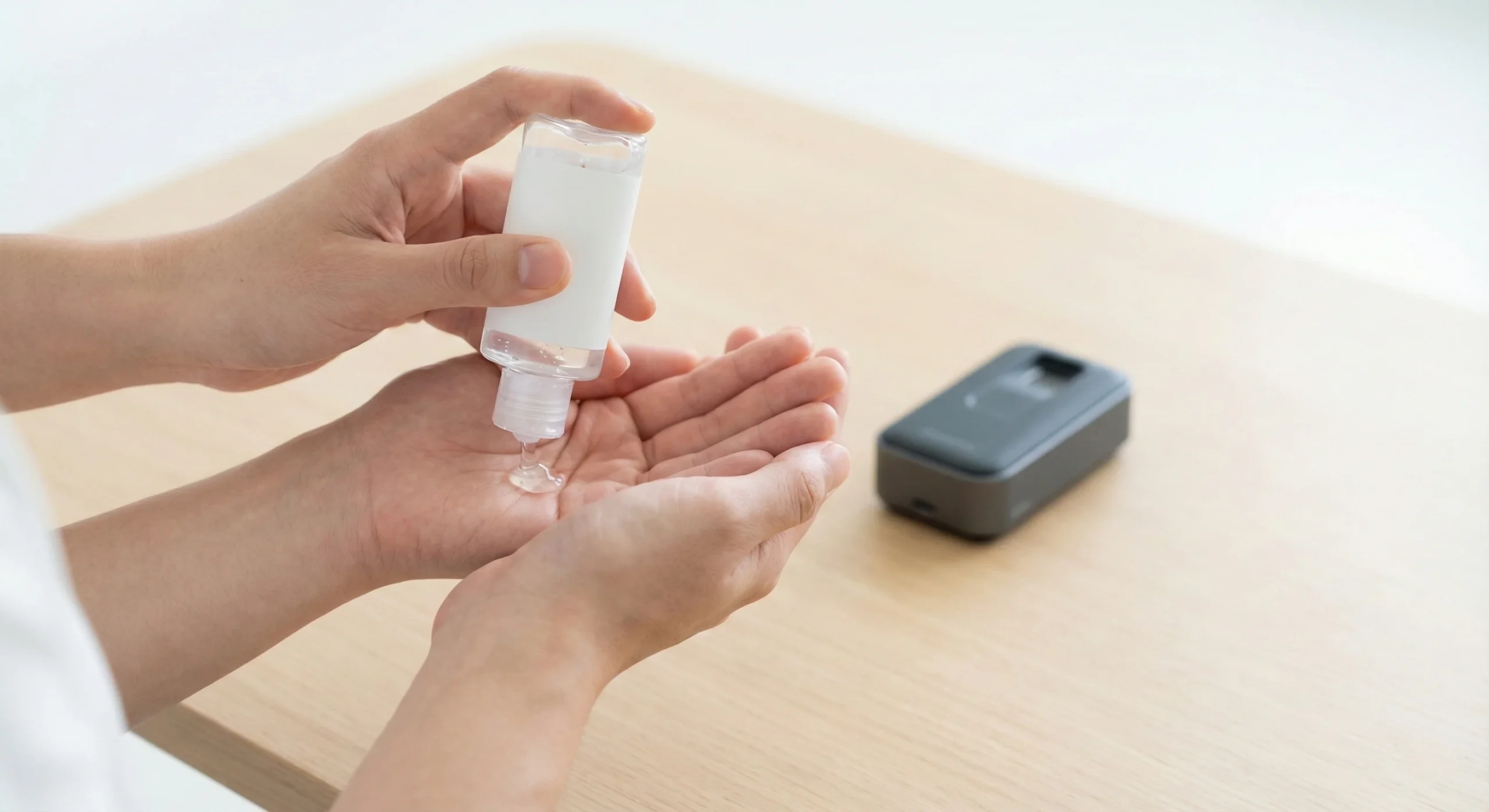
Correctly preparing the finger before scanning is one of the most effective and overlooked ways to improve fingerprint recognition performance. Dirt, sweat, oil, or moisture on the fingertip can distort ridge patterns captured by the sensor and cause higher false rejection rates or repeated attempts.
When the finger is dirty or wet, residue and liquid fill the grooves between fingerprint ridges or create a thin film over the finger surface, degrading the contrast between ridges and valleys that the sensor needs to capture a clear image. Capacitive fingerprint sensors, which rely on tiny capacitor arrays to detect differences in electrical charge between ridges and valleys, are particularly sensitive to water and sweat because liquids can alter conductivity and reduce the quality of the captured pattern. Optical sensors can also be affected when smudges or moisture scatter light and blur the fingerprint image.
To improve recognition, users should briefly prepare the finger before each scan when conditions are not ideal.
- Wipe the fingertip with a clean, lint-free cloth or tissue to remove dust, oil, or light moisture before placing it on the sensor.
- If hand sanitizer is used, allow it to dry completely to avoid leaving excess liquid on the skin that can interfere with capacitive sensing.
- In very dry environments, where skin becomes rough or cracked, applying a small amount of hand lotion and letting it absorb can help restore skin elasticity and improve the clarity of the ridge patterns.
For field teams, training users and staff to quickly check and clean their fingers before scanning can significantly reduce failed captures, especially in hot, humid, or dusty environments.
Tip 2: Clean the Fingerprint Sensor Surface Regularly
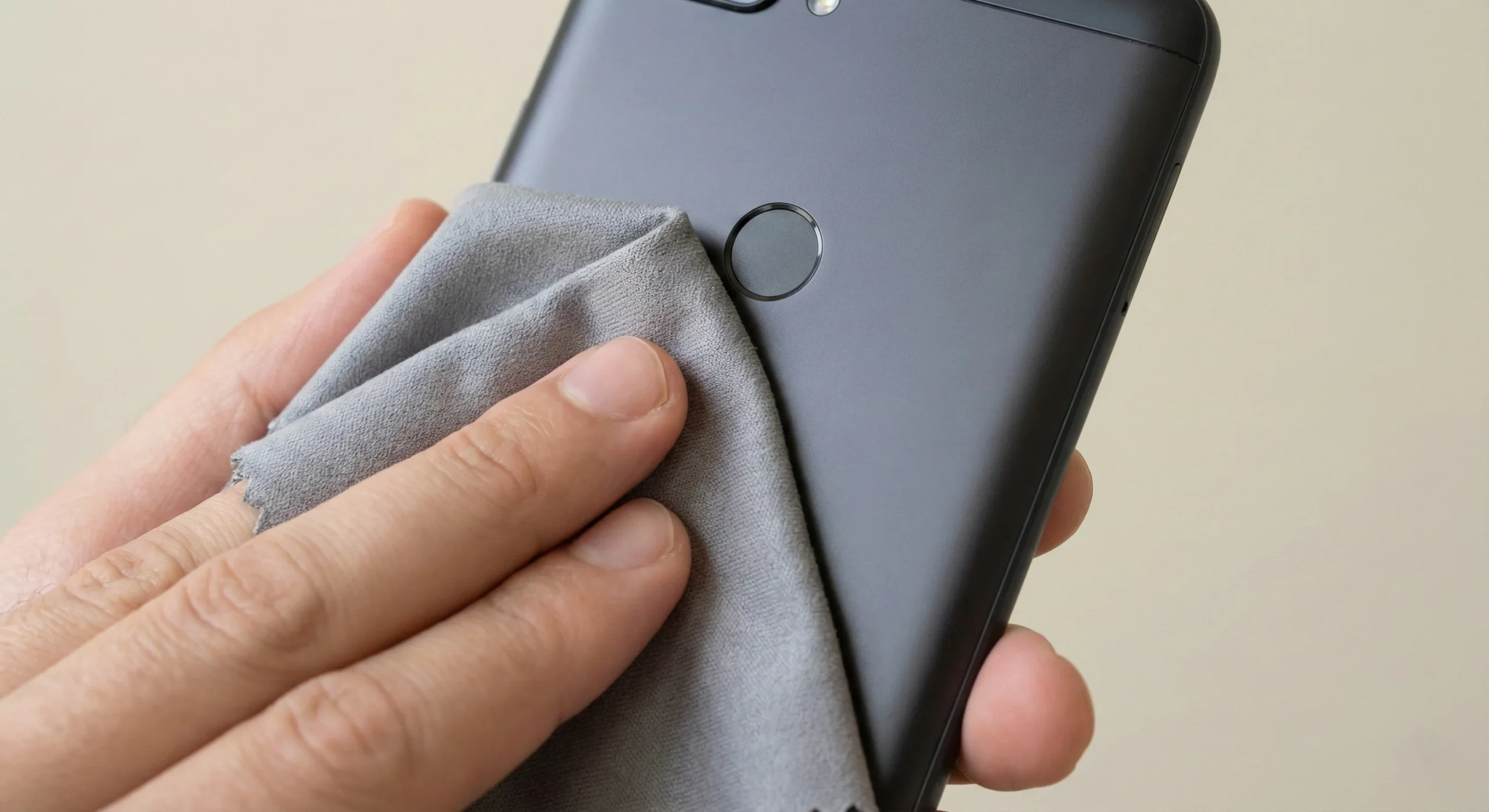
Even if the user’s finger is clean, a contaminated sensor surface can cause poor image quality and lead to slower or failed authentication. Over time, sensors accumulate fingerprints, oils, dust, and other particles that scatter light (for optical readers) or interfere with the contact between finger and sensor surface (for capacitive readers).
Regular, careful cleaning of the sensor surface helps ensure it can consistently capture clear and usable fingerprint images. Manufacturers and security hardware providers routinely recommend simple, non-abrasive cleaning procedures for both capacitive and optical fingerprint modules.
To maintain the sensor safely and effectively:
- Use a soft, non-abrasive cloth (such as microfiber) to gently wipe the sensor surface and remove dust, smudges, or oils.
- If needed, slightly dampen the cloth with a small amount of approved cleaning solution (for example, a mild alcohol-based cleaner recommended by the device manufacturer) and make sure the sensor is dry before use.
- Avoid using hard or sharp objects—like keys, metal tools, or fingernails—as they can scratch the protective layer of the sensor and permanently degrade image quality.
- Do not apply harsh chemicals, solvents, or abrasive cleaners that may damage the sensor coating or housing.
In operational environments such as retail counters, checkpoints, or patrol units, building sensor cleaning into daily or shift-based routines helps keep performance consistent and reduces troubleshooting time.
Tip 3: Ensure Correct Finger Placement and Pressure
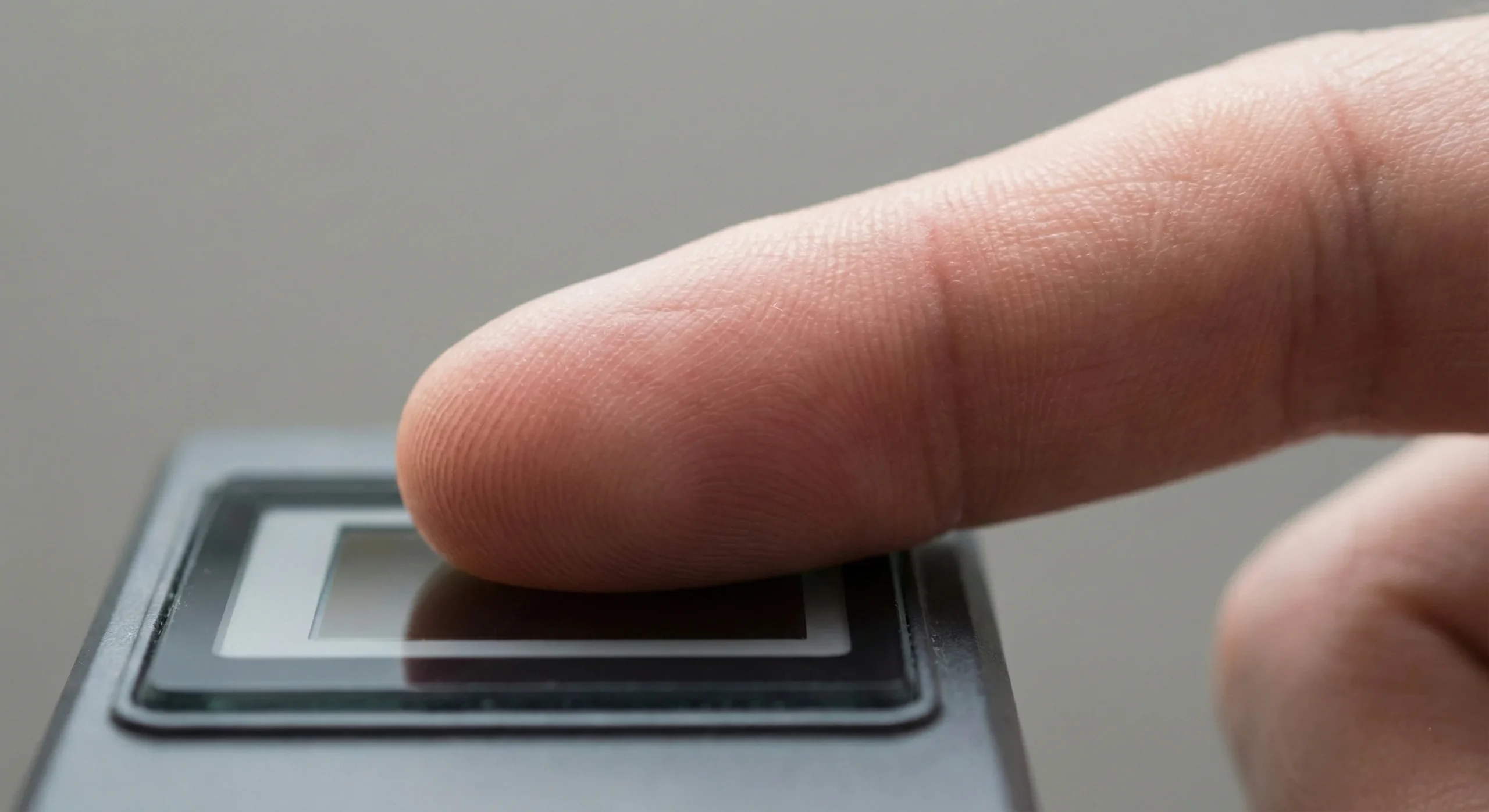
Even with clean fingers and a clean sensor, poor placement or incorrect pressure can reduce recognition accuracy and force additional scan attempts. Mobile fingerprint devices are designed to capture a fingerprint that is flat, centered, and sufficiently in contact with the sensing area so the system can extract a robust template for matching.
If the finger is placed at a steep angle, only a partial portion of the ridge pattern touches the sensor, leading to incomplete or distorted images. Minimizing the tilt angle between the finger and sensor surface helps increase the overlap between the enrolled template and the live sample. Similarly, pressing too lightly may result in incomplete contact, while pressing excessively can “smear” the ridges, reducing contrast and failing quality checks.
To improve placement and pressure:
- Position the fingertip so it lies flat on the sensor surface, with the pad of the finger centered over the active area rather than touching only an edge or corner.
- Avoid vertical or horizontal angles that are too large; keeping the finger as parallel to the sensor surface as possible helps the device capture a full and consistent pattern.
- Apply gentle, even pressure—enough to ensure full contact between the skin and sensor, but not so strong that the finger is squashed or shifted while being scanned.
Training users to place their finger in a repeatable, consistent way—especially in high-throughput environments such as enrollment stations or mobile checkpoints—reduces enrollment and verification errors and improves overall system throughput.
Tip 4: Keep Your Hand Still During Scanning
Fingerprint capture is not truly instantaneous; the device needs a brief, but real, amount of time to read and process the fingerprint image. If the finger moves during this short capture interval, the resulting image can become blurred or distorted, similar to motion blur in photography, which can cause quality checks and matching to fail.
When users are in a hurry, or when devices are used outdoors or in vehicles, it is common for fingers to shift on the sensor just as the capture occurs. Many devices respond to unclear captures with visual or audio indicators, such as red or green lights or voice prompts, to signal whether the scan succeeded or needs to be repeated.
To minimize motion-related failures:
- Instruct users to keep their hand and finger completely still from the moment they place the finger on the sensor until the device signals completion (for example, via a green indicator light, vibration, or confirmation message).
- Encourage users not to “tap” or quickly lift and replace their finger; a steady, brief hold is usually more effective than multiple rapid taps.
- Where possible, ask users to support their hand on a stable surface (such as the device frame or table) while scanning, which reduces unintentional movement.
In field deployments, clearly communicating these expectations to users and operators can significantly cut down on repeated scans and streamline verification workflows.
Tip 5: Keep Device Firmware Updated
Beyond physical handling, the software and firmware inside a mobile fingerprint device play a critical role in performance. Firmware updates often include improvements to image processing, quality checks, template extraction, and matching algorithms, as well as bug fixes and security enhancements.
Vendors of biometric devices and modules regularly release firmware updates to adapt to new operating conditions, support more sensors, optimize speed, and improve compatibility with host systems. Failing to update firmware can mean missing out on improvements in recognition accuracy, resistance to noise, and protection against new security threats such as spoofing techniques.
To keep the device operating at its best:
- Check regularly for firmware updates from the device or module manufacturer and follow their recommended update process.
- Apply updates in a controlled way—such as during maintenance windows or scheduled downtime—to avoid disrupting active operations while still keeping the fleet current.
- Review release notes where available, so administrators understand whether the update focuses on performance optimizations, bug fixes, security hardening, or new features.
For organizations deploying large numbers of mobile fingerprint devices, maintaining standardized firmware versions across the fleet simplifies support, ensures consistent performance, and helps meet security and compliance requirements.
Conclusion
Improving the performance of a mobile fingerprint device does not require specialized tools or complex procedures; it largely depends on consistent application of simple, proven practices. Keeping fingers and sensors clean, ensuring proper placement and steady contact, and maintaining up-to-date firmware all work together to improve image quality, reduce false rejections, and speed up identity verification.
For organizations relying on mobile biometric devices in the field—whether for payments, ID verification, access control, or public safety—embedding these tips into user training and operational procedures helps maintain both convenience and strong security across their digital services.