In the world of cybersecurity, not every threat is a virus or a malicious attack that breaks into your system. Some threats arrive silently, disguised as helpful add-ons or bundled software that you never asked for. These are known as PUPs, also called Potentially Unwanted Programs. While they may not always be designed to cause direct harm, their presence can lead to privacy issues, device performance problems, and an overall disruptive digital experience.
If you’ve ever wondered what is PUP, why it appears on your computer, or how it affects cybersecurity, this guide explains everything in detail.
PUP Full Form: What Does PUP Stand For?
The PUP full form is Potentially Unwanted Program. As the name suggests, these programs are not usually outright malware. Instead, they fall into a grey area. You may have unknowingly given permission for them to install when installing another software.
Because many PUPs technically require user consent, they are not always classified as harmful in the same way as viruses or Trojans. However, they often:
- Slow down your computer
- Display excessive advertisements
- Modify browser settings
- Track user activity
- Consume system resources
So even though they are not always malicious by design, they can lead to serious inconvenience and even security concerns.
What is PUP in Cyber Security?
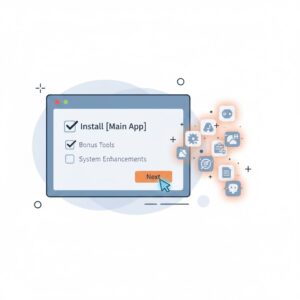
To understand what is PUP in cyber security, look at how these programs behave after installation. They frequently attach themselves to system processes, browser extensions, or default settings.
In cybersecurity, PUPs are treated as digital parasites — software that fails to provide genuine user benefit yet uses system resources and potentially gathers data for unknown purposes.
They aren’t installed through hacking techniques but through bundled installations where users unintentionally click through prompts without reading terms.
PUPs may not harm systems directly, but they can pave the way for more severe cyber threats by weakening privacy and system integrity.
PUP vs PUA: What is the Difference?
You may also come across the term PUA in cybersecurity reports. The PUA full form is Potentially Unwanted Application.
While PUP and PUA are often used interchangeably, some experts distinguish them slightly:
| Term | Full Form | Focus | Harm Level |
| PUP | Potentially Unwanted Program | Software bundled without clear approval | Mild-to-Moderate |
| PUA | Potentially Unwanted Application | Broader category including apps with deceptive behavior | Moderate-to-High |
Both terms represent programs that users would not intentionally install if they fully understood the consequences.
How Do PUPs Get Into Your Device?
The most common reason PUPs spread is user oversight. People often skip installation steps without noticing extra components being added.
Here’s how PUPs usually make their way onto computers:
- Bundled software installations
- Clicking misleading download buttons
- Fake system alerts urging “updates”
- Pop-up ads appearing during browsing
- Free tools packaged with adware
- File-sharing and torrents
- USB or external devices carrying extra software
The truth is most PUPs require some form of accidental consent, making user awareness essentia
Common Types of PUPs
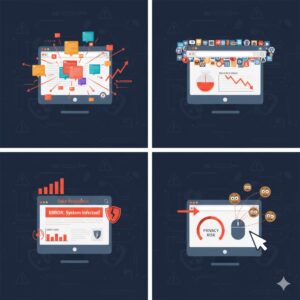
PUPs can disguise themselves as helpful tools, but their real purpose is usually advertising, data tracking, or browser manipulation. Below are the most common forms:
Adware
Shows unwanted pop-ups and redirects while collecting browsing behavior to target ads.
Browser Toolbars
Often installed without purpose, toolbars take up memory and change browsing preferences such as homepages and search engines.
Fake Optimization Tools
Claim to boost system performance but usually promote fake errors and force payment to “fix” issues.
Trialware / Unwanted Utility Apps
Installed during software downloads but rarely offer any real benefit.
Tracking Software
Collect user habits, search patterns, and location data without clear permission.
These PUPs can even create privacy risks, exposing personal information to unknown third parties.
How PUPs Affect Your Device and Security
Even though a PUP is not classified as malware, its effects can become increasingly harmful. Here’s what users commonly experience:
- Computer slows down noticeably
- Browser performance drops
- Internet data usage increases
- Ads appear on websites where they shouldn’t
- Search results redirect to unknown engines
- Programs crash or respond slowly
- Storage is consumed unnecessarily
- Personal data is tracked and shared
In cybersecurity terms, PUPs are gateways to potential threats. If left unchecked, they can:
- Install more PUPs or spyware
- Redirect users to malicious websites
- Weaken system defenses
So while they may not break in violently like a virus, they open doors for other threats.
How to Recognize a PUP
Some tell-tale signs that a system is affected by PUPs include:
- You see new apps you didn’t install
- Browser homepage suddenly changes
- Toolbars or extensions appear without permission
- Constant ads flood the screen
- Search results feel manipulated
- System memory usage seems unusually high
If you observe any of these issues, your computer is likely hosting unwanted software.
How to Protect Yourself from PUPs
Good cybersecurity begins with careful software habits. To prevent installation of PUPs:
Read installation screens carefully
Do not click “Next” mindlessly — look for bundled add-ons.
Choose Advanced or Custom Setup
This displays hidden extra components so you can uncheck them.
Download only from trusted sources
Avoid third-party download portals with aggressive advertising.
Use browser protection tools
Ad blockers and anti-spyware can reduce exposure to malicious downloads.
Never trust unrealistic promises
Programs that claim to instantly speed up performance are often misleading.
Stay aware of “dark patterns”
Examples include:
- Grayed-out “Skip” button
- Pre-checked boxes forcing installs
- Fake certifications
Awareness is your strongest defense.
How to Remove PUPs from Your Device
Fortunately, PUP removal is usually straightforward:
On Windows
- Open Control Panel > Programs > Uninstall a Program
- Remove suspicious applications
- Reset browser settings
On Mac
- Go to Finder > Applications
- Drag unwanted apps to Trash
- Empty the trash and restart
- Check browser extension lists
Additionally, scanning your system with anti-malware tools can help detect hidden components.
Conclusion
PUPs may seem harmless compared to ransomware or spyware, but they impact performance, privacy, and productivity. Understanding what a PUP is helps prevent accidental installations and keeps your digital environment clean. By reading installation prompts and avoiding untrustworthy downloads, users can eliminate most risks before they even begin.
A secure system always starts with informed decisions. Vigilance today helps prevent bigger cybersecurity problems tomorrow.
FAQs
What is PUP in simple words?
A PUP is software that gets installed unintentionally and causes annoyance or performance issues, even though it is not always harmful.
Is a PUP a virus?
No. A PUP is not a virus but can still negatively affect performance and privacy.
Why do antivirus programs allow PUPs?
Because users technically give permission during installation, even if unknowingly.
Can PUPs steal data?
Some PUPs track user behavior and collect personal information, making them privacy risks.
Are PUPs dangerous?
Not always, but they can lead to more severe threats if ignored.
How do I stop PUPs for good?
Be cautious while installing software, avoid bundled downloads, and use trustworthy online resources.