Computer viruses remain one of the most persistent threats in the digital world. As laptops, desktops, and personal devices become central to work, banking, communication, and entertainment, the consequences of a malware infection are more serious than ever. Knowing how to remove a virus from a computer is no longer just a technical skill — it is a basic digital survival requirement.
Viruses can slow down systems, steal sensitive data, damage files, and open the door to further cyberattacks. Many users realize something is wrong only after noticeable performance issues begin. This guide explains how to remove virus from laptop, how to remove virus from PC, and how to protect your device from future infections using safe and practical methods.
What Is a Computer Virus
A computer virus is a type of malicious software designed to copy itself and spread from one system to another. Much like a biological virus, it attaches itself to legitimate files or programs and activates when those files are opened or executed.
Once active, a virus can perform harmful actions such as modifying system files, corrupting data, monitoring user activity, or allowing unauthorized access to the device. Unlike some other forms of malware, a virus is self-replicating, which means it can spread rapidly if not removed in time.
Understanding what a virus is helps users recognize why immediate action is essential when symptoms appear.
How Computers Get Infected With Viruses
Most virus infections do not happen randomly. They rely on everyday user behavior and common digital activities.
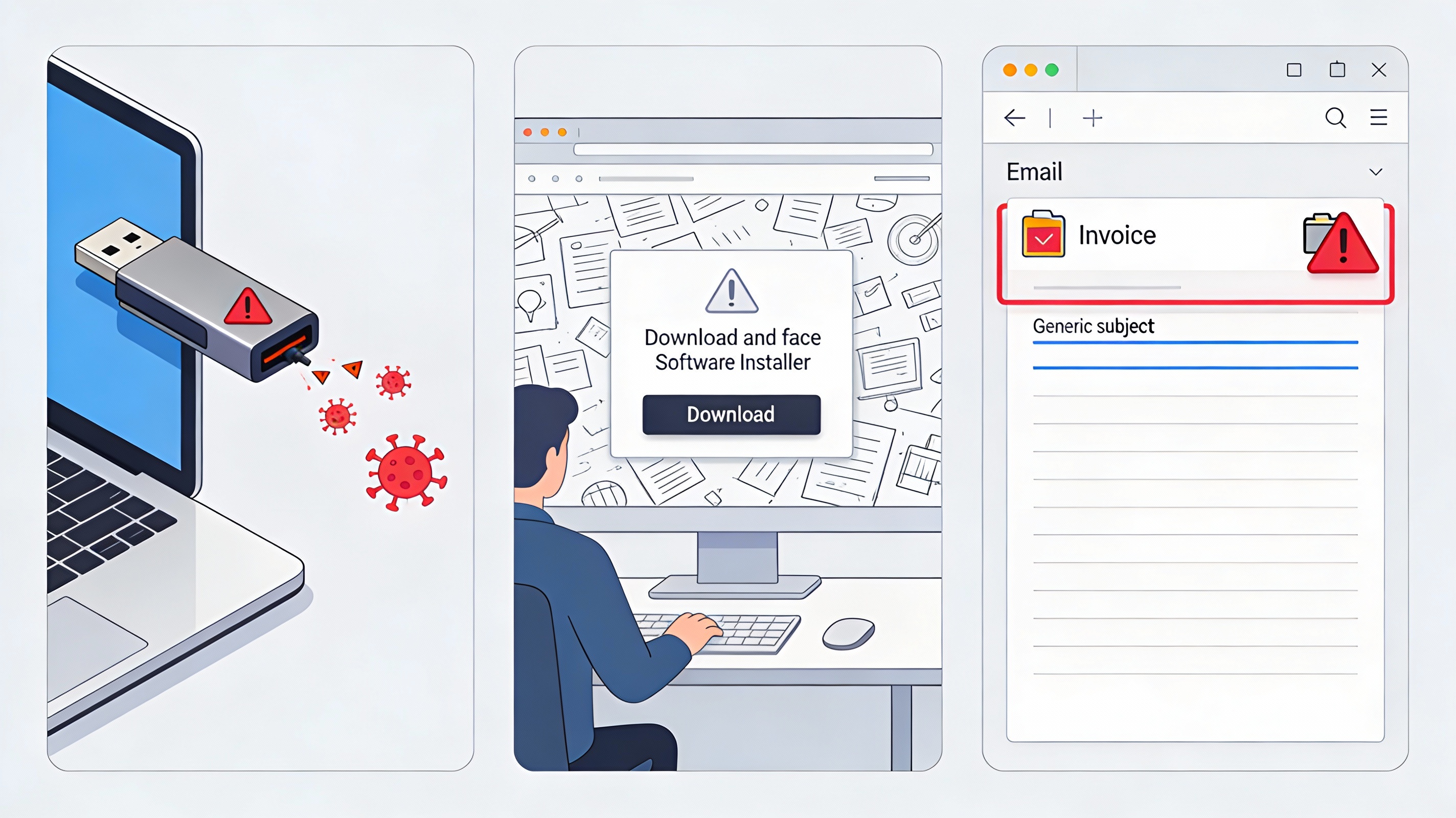
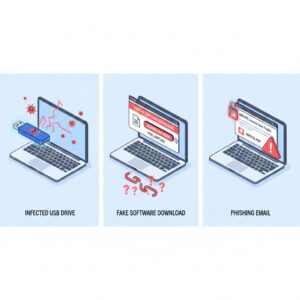
Infected Removable Media
External storage devices such as USB drives can carry viruses from one computer to another. When plugged into a system, the virus may execute automatically or infect files on the device.
Malicious Online Downloads
Many infections occur when users download software, games, media files, or tools from unverified websites. A file may appear legitimate while secretly containing malicious code.
Email Attachments and Links
Emails remain one of the most effective delivery methods for viruses. Attachments and links disguised as invoices, job offers, or security alerts often trick users into activating malware.
In most cases, virus infections succeed because the threat is not recognized in time. Awareness plays a major role in prevention.
Signs Your Computer May Have a Virus
There is no single symptom that confirms a virus infection, but several warning signs often appear together.
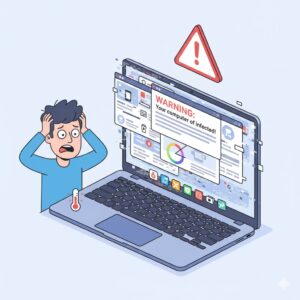
Slow system performance is one of the most common indicators. Programs take longer to open, and routine tasks feel unusually heavy.
Unexpected applications may appear without your permission. If software is installed that you do not recognize, it could be a sign of malware activity.
Unstable behavior such as frequent crashes, pop-ups, system restarts, or applications closing unexpectedly may indicate that malicious processes are running in the background.
Overheating and excessive fan noise can occur when malware consumes processing power continuously.
Files may go missing, change names, or become inaccessible. In some cases, settings are altered without user input.
Fake security alerts are another red flag. These messages often urge users to download additional software, which may worsen the infection.
If any combination of these symptoms is present, it is important to act quickly and begin the virus removal process.
How to Remove a Virus From a Laptop or PC
If you are wondering how to delete virus from laptop or how to remove virus from computer, the following process provides a structured and safe approach.
Disconnect From the Internet
Disconnecting from the internet prevents the virus from communicating with external servers or spreading further. This step limits additional damage while cleanup begins.
Restart in Safe Mode
Safe Mode starts the computer with minimal background services. This limits the ability of the virus to run and makes it easier to detect and remove malicious files.
Clear Temporary Files
Temporary files can hide malware components. Removing unnecessary files also speeds up virus scanning and reduces clutter.
Run a Full System Scan
Use a trusted security tool to perform a deep system scan. A full scan checks system memory, startup processes, and stored files for malicious activity.
Remove or Quarantine Detected Threats
Once threats are detected, follow the tool’s guidance to remove or isolate them. Quarantining prevents harmful files from running while keeping them available for review if needed.
Restart and Scan Again
After removal, restart the system normally and perform another scan. This confirms that no hidden remnants remain.
Update Passwords and Software
Once the system is clean, update passwords for email, banking, and social accounts. Update the operating system and installed software to close vulnerabilities that may have been exploited.
This process applies to both desktop and portable devices and is effective for users seeking to remove virus from laptop or remove virus from PC safely
Also Read: What Is Scareware? & How does it Work?
How to Remove a Virus From a Mac
Mac systems are not immune to viruses, and infections require a careful but similar approach.
Ensure the operating system is fully updated. Updates often contain important security patches.
Run a full antivirus scan to identify infected files.
Review installed applications and remove anything unfamiliar or suspicious.
Empty the trash to fully eliminate deleted files.
After cleanup, update all passwords and enable additional security features.
Maintaining updated software is especially important for preventing future threats.
What to Do After Virus Removal
Removing the virus is only part of the recovery process. Post-removal actions help ensure long-term safety.
Change all important passwords, including email, cloud services, and financial accounts.
Monitor accounts for unusual activity in the days following removal.
Enable automatic updates for your operating system and applications.
Avoid reinstalling files from old backups unless they are verified as clean.
These steps reduce the risk of reinfection or lingering security issues.
How to Prevent Computer Viruses in the Future
Prevention is far easier than cleanup. Smart digital habits significantly reduce risk.
Only download software from trusted sources. Check reviews, permissions, and developer credibility.
Avoid clicking links or opening attachments from unknown senders.
Do not insert unfamiliar USB devices into your computer.
Keep your system, browsers, and applications up to date.
Use strong, unique passwords and consider a password manager.
Avoid unsecured public Wi-Fi or use secure connections when necessary.
Staying vigilant is the most effective defense against malware.
Why Virus Removal Knowledge Matters
Cyber threats continue to evolve, and attackers rely on users being unprepared. Knowing how to remove virus from laptop or how to remove virus from computer empowers users to respond quickly and limit damage.
A clean system protects personal data, financial information, and professional work. It also prevents malware from spreading to other devices or contacts.
Conclusion
Computer viruses are a reality of modern digital life, but they do not have to be catastrophic. With the right knowledge and timely action, users can successfully remove virus from laptop, delete virus from PC, and restore system health.
Understanding infection methods, recognizing early symptoms, and following structured removal steps are essential skills for every computer user. Combined with smart security habits and regular updates, these practices create a strong defense against future threats.
Staying informed and proactive is the best way to keep your devices secure, responsive, and reliable.
FAQs
How do I know if my laptop has a virus
Common signs include slow performance, unusual pop-ups, unknown apps, overheating, and unexpected system behavior.
How to remove virus from computer without losing files
Using Safe Mode and trusted antivirus tools allows virus removal while preserving personal data.
How often should I scan my PC for viruses
Regular scans help detect threats early. Running scans weekly is a good habit.
Can a virus come back after removal
If software and passwords are not updated, reinfection is possible. Always update systems after cleanup.
Is resetting a computer necessary to remove a virus
In most cases, no. A full system scan and proper removal steps are sufficient unless the infection is severe.