Summary
If you have ever connected to a Wi-Fi network, you have already interacted with an SSID — even if you didn’t realize it. Every wireless network that your phone, tablet, or laptop connects to is identified by a specific name. That name, known as the SSID, allows you to distinguish one Wi-Fi network from another. Despite being a fundamental part of how wireless connectivity works, many people have never stopped to ask, what is SSID or what is SSID of the network they connect to every day.
In this article, we’ll break down the full SSID meaning, explore how it works, why it matters, how to find or change it, and how it relates to network security.
What is SSID and What Does it Mean?
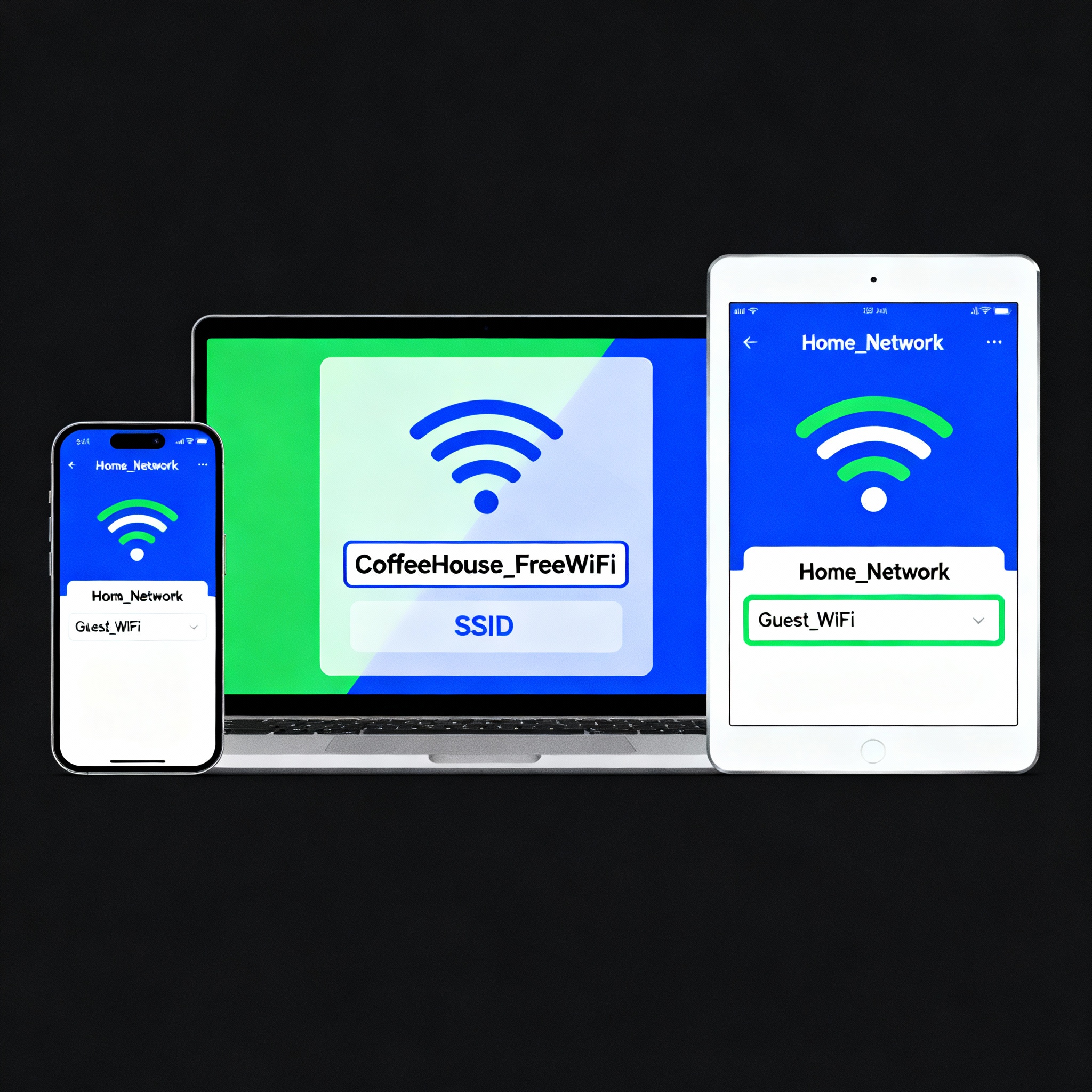
The term SSID stands for Service Set Identifier. In simple terms, the SSID is the name of a Wi-Fi network. When you open your device’s Wi-Fi settings and see a list of available networks such as Home_Network, Guest_WiFi, or CoffeeHouse_FreeWiFi, those names are SSIDs.
To understand the SSID meaning, think of it as a digital label that distinguishes one wireless network from another. Every router or wireless access point broadcasts this identifier so that nearby devices can recognize and connect to it. Without the SSID, your phone or laptop wouldn’t know which network to connect to among the many available in your area.
When a router is installed for the first time, it comes with a default SSID assigned by the manufacturer. For example, it might be named Linksys-3456 or TP-LINK-6789. Users can later customize this name to something more personal or recognizable, such as The Smith Family WiFi or Office_Network.
In short, the SSID of a network is simply the label your device uses to find and connect to the correct Wi-Fi hotspot.
What is the SSID of a Network and What is it Used For?
When you set up a router, it creates a wireless network that other devices can connect to. The SSID is the unique name broadcast by that router to help devices identify it. The SSID serves several practical functions:
- Identification: It differentiates your Wi-Fi from others nearby. For instance, in an apartment building with multiple routers, each unit will have a distinct SSID to prevent confusion.
- Accessibility: It allows devices like smartphones, laptops, or tablets to locate and connect to the desired network.
- Automatic reconnection: Once a device connects to a network, it stores the SSID and can automatically reconnect later without asking for the password again.
The SSID of the network is therefore essential for convenience and connectivity. Without it, users would have to manually configure network connections every time they wanted to access Wi-Fi.
However, the SSID by itself does not secure the network. It is only an identifier. Security depends on encryption protocols such as WPA2 or WPA3, which require users to enter a password or key before they can access the internet.
How SSID and WPA2 Work Together
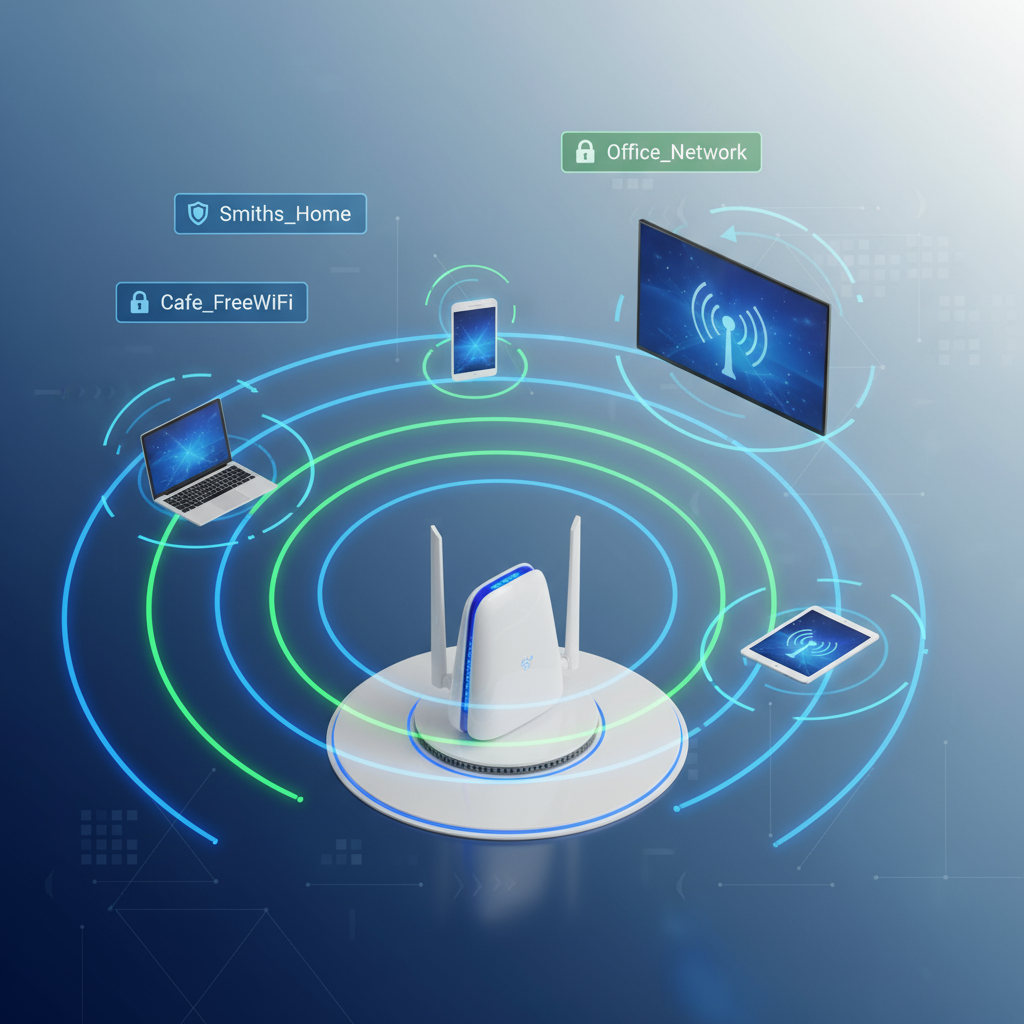
While the SSID helps devices find the right network, WPA2 (Wi-Fi Protected Access II) ensures that only authorized users can connect. Both are necessary for a safe wireless environment.
When you attempt to connect to a Wi-Fi network, your device first identifies available SSIDs. Once you select a specific SSID, the router prompts you to enter a password if the network is protected by WPA2 or WPA3 encryption. This password acts as the authentication key that ensures your data is securely transmitted between your device and the router.
So, in practical terms:
- The SSID is the network’s name, visible to everyone nearby.
- WPA2/WPA3 is the encryption standard that protects the network’s data.
Each plays a unique role. The SSID allows users to find and identify the network, while WPA2 secures communication and prevents unauthorized access. Together, they make modern Wi-Fi both functional and safe.
How to Find Your SSID
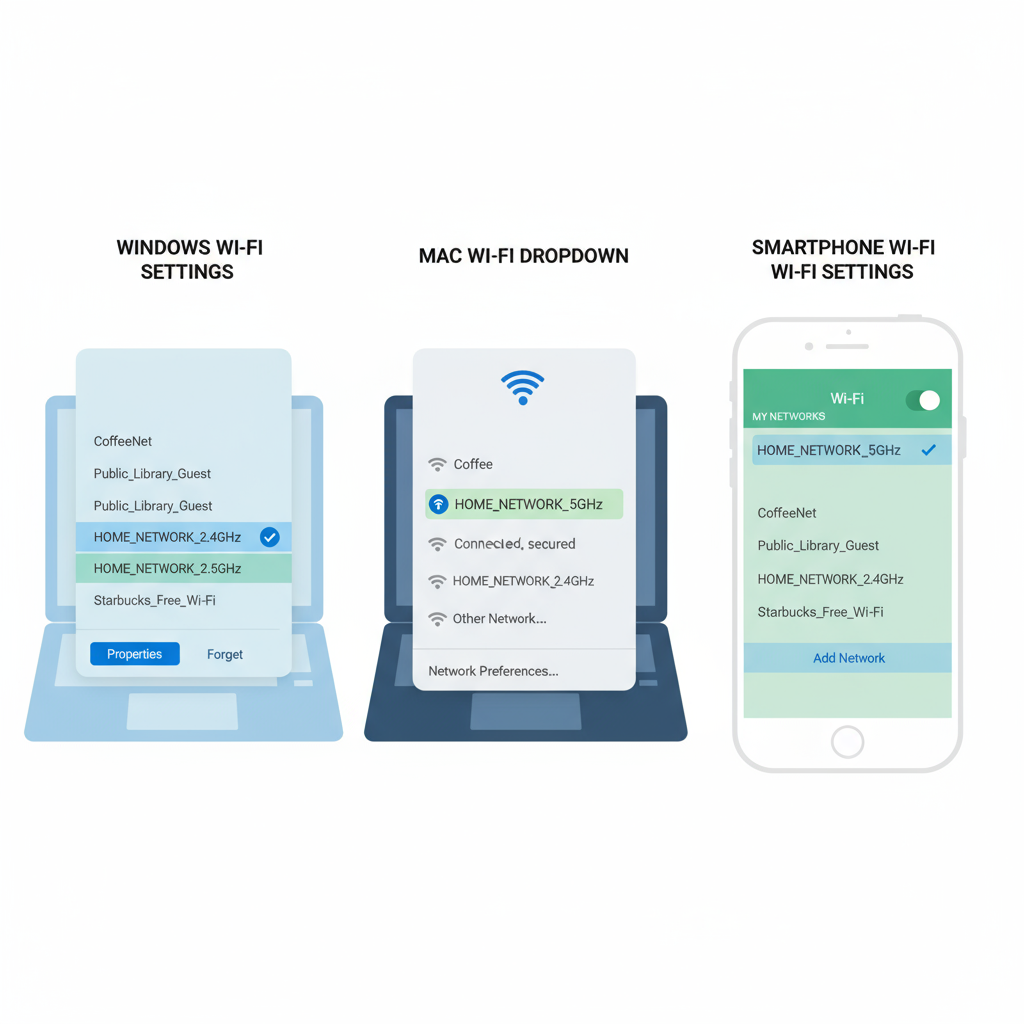
Now that you know what is SSID of the network, you might want to find out what your own SSID is. The process is straightforward and depends on whether you are connected to the network or not.
Check the router
Most routers have a sticker that displays the default SSID and password. You can usually find this label on the bottom or back of the device. This is especially helpful when connecting a new device for the first time.
Check your device’s settings
If you are already connected to the Wi-Fi, open your device’s network settings. The name of the connected Wi-Fi network is the SSID. For example:
- On Windows: Go to Network & Internet Settings → Wi-Fi → Connected Network Name.
- On Mac: Click the Wi-Fi icon in the menu bar and see the checkmarked network.
- On mobile devices: Go to Settings → Wi-Fi → the network currently connected.
Ask the owner
If the Wi-Fi belongs to someone else, such as a café or a friend’s house, simply ask them for the SSID and password.
What to Do If Your SSID Is Not Showing Up
Sometimes, you may not see your SSID listed among available networks. There are several possible reasons for this:
- The router’s SSID broadcast is disabled (the network is hidden).
- The device is out of range.
- The router is malfunctioning.
- The network adapter on your device is turned off or outdated.
Here are ways to troubleshoot:
- Check that the SSID broadcast is enabled. Access your router settings through a web browser and ensure “SSID Broadcast” is turned on.
- Restart the router. Power cycling often fixes temporary glitches.
- Move closer to the router. Weak signals can prevent the SSID from appearing.
- Update device drivers. Outdated network drivers can cause connectivity issues.
- Reset the router. If necessary, restore factory settings; this will reset the SSID to its default name.
By following these steps, you can usually restore visibility of your network and connect successfully.
Choosing an SSID Name
Every Wi-Fi network has an SSID, but not every name is unique or easy to identify. Many routers come with factory-set SSIDs that contain brand names and random numbers, such as TP-LINK-1025 or NETGEAR-5500. While functional, these default names can cause confusion, especially in areas where multiple networks use similar identifiers.
A custom SSID offers several benefits:
- Clarity: It helps you quickly identify your network among many others.
- Personalization: You can choose a name that reflects your home, business, or brand identity.
- Professionalism: Businesses often use SSIDs that incorporate their company name for brand consistency, such as Starbucks_WiFi or OfficeConnect.
When naming your network, avoid using personal information like your name or address. Instead, opt for something neutral, creative, and easy to remember.
How to Change Your SSID
Changing the SSID of a Wi-Fi network is straightforward. Here’s how it works:
- Locate the router’s IP address, typically found on the label.
- Connect a device to the router’s network.
- Open a browser and type the IP address into the search bar (for example, 192.168.1.1).
- Log into the router’s admin dashboard using the provided username and password.
- Navigate to Wi-Fi or WLAN settings.
- Look for the SSID field, and type in your new network name.
- Save the settings and restart the router.
After a few minutes, the new SSID should appear on the list of available networks. You may need to reconnect your devices using the same password.
SSID Security for Wi-Fi Networks
Understanding what is SSID is only part of the equation — protecting your network is just as important. The SSID itself does not provide any security. It is simply a name broadcast by the router. The real protection comes from encryption standards and strong passwords.
If a router uses a default SSID that includes its brand and model number, hackers can easily identify its vulnerabilities. For example, if your router broadcasts “TP-LINK-0001,” an attacker could use known exploits for that device type to compromise it.
Here are best practices for SSID security:
- Change the default SSID: A unique name reduces predictability.
- Use WPA2 or WPA3 encryption: Always enable encryption and require a password.
- Set a strong password: Use a long combination of letters, numbers, and symbols.
- Keep router firmware updated: Regular updates patch known security issues.
- Avoid public connections: In public places, connect only to verified Wi-Fi networks with recognizable SSIDs.
Public networks are particularly risky because cybercriminals often create fake SSIDs that resemble legitimate ones, tricking users into connecting. For example, a hacker might set up a network named Airport_FreeWiFi that looks legitimate. Once connected, they can intercept communications and steal sensitive information.
To avoid such attacks, always confirm the correct SSID before connecting, especially in public spaces.
Should You Hide Your SSID?
Some people think that hiding their SSID makes their Wi-Fi invisible and therefore secure. In reality, hiding the SSID provides minimal protection. Sophisticated attackers can still detect hidden networks using scanning tools.
Moreover, hiding your SSID can cause inconvenience. Devices may struggle to reconnect automatically, and legitimate users might have trouble finding the network. Instead of hiding the SSID, focus on securing it with WPA2 encryption and a strong password.
What Happens If Multiple Networks Share the Same SSID
If two or more routers in close proximity use the same SSID, it can cause confusion for devices trying to connect. For instance, in an apartment building, two neighbors might both have routers named Linksys123. Devices could accidentally connect to the wrong network or fail to connect altogether.
More dangerously, hackers sometimes exploit this by creating fake networks that share the same SSID as legitimate ones. Users who connect to these fraudulent networks risk having their personal data stolen.
The best way to avoid these issues is to assign a unique SSID that stands out clearly from surrounding networks. Always verify the network’s authenticity before connecting, especially in public or shared spaces.
The Role of SSIDs in Wireless Networking
The SSID of the network is the foundation of modern wireless connectivity. It allows users to identify, access, and manage Wi-Fi networks easily. Without SSIDs, connecting to the internet would require manually configuring every device with technical network details.
However, while the SSID makes connectivity convenient, it also introduces potential security risks if not managed properly. By understanding its function and following security best practices, users can enjoy the benefits of wireless technology safely.
Customizing your SSID, using encryption, and being mindful of suspicious or duplicate network names are simple yet powerful steps in maintaining a secure connection.
FAQs
What is SSID?
SSID stands for Service Set Identifier. It is the public name of a Wi-Fi network that helps devices locate and connect to it.
What is the SSID of a network?
It is the unique name broadcast by your router. You can see it in your Wi-Fi settings when selecting which network to connect to.
How do I find my SSID?
Look for a sticker on your router or check your device’s Wi-Fi settings to see which network you’re connected to.
Can I change my SSID?
Yes. You can log into your router’s admin panel, go to the Wi-Fi settings, and update the SSID field with your preferred name.
Should I hide my SSID?
Not necessarily. Hiding it provides little security benefit and can complicate connections. It’s better to use WPA2 encryption and a strong password.
What happens if two networks share the same SSID?
Devices may connect to the wrong network or fail to connect. Unique SSIDs help prevent confusion and improve network security.
Conclusion
The SSID, or Service Set Identifier, is a fundamental component of every Wi-Fi network. It serves as the visible name that allows users to identify and connect to the correct network. Understanding what is SSID, what is SSID of a network, and how it interacts with security protocols is essential for anyone managing or using wireless connections.
While the SSID itself doesn’t secure your Wi-Fi, using it wisely—by customizing it, avoiding default names, and pairing it with strong encryption—ensures that your connection remains both accessible and safe. In the digital world where wireless communication underpins nearly every activity, mastering the basics of SSIDs helps you stay connected with confidence and control.