If you’ve ever tried to download an app from outside the Google Play Store, you’ve probably seen the term “APK” and wondered what it really means. Understanding what is APK and how it works can help you take more control over the apps you install, troubleshoot issues, and even access apps that are not yet available in your region.
What is APK?

To put it simply, an APK (Android Package Kit) is the file format that Android uses to distribute and install apps.
It’s similar to the way Windows uses .exe files or macOS uses .dmg files.
When you install an app from the Google Play Store, your device is actually downloading and processing an APK in the background,
even if you never see the file itself.
The term package is important here. An APK is a package that contains everything your Android device needs to run an app:
code, images, text, configuration files, certificates, and more. Once this package is installed, the app appears in your app drawer and can be launched just like any other app.
APK as the “Installer” for Android Apps
When you install an Android app, your phone needs a structured way to receive all of the files and instructions required for that app to function.
That structure is the APK format. It tells your device:
- What the app is called
- Which icon to display
- What permissions it needs (like camera, storage, or contacts)
- Which devices and Android versions it supports
- What code to run when you open the app
So when people ask what is APK, the shortest answer is: it’s the official installation package for Android apps.
What’s Inside an APK File?
Technically, an APK is just a compressed file (similar to a ZIP) that contains a set of folders and files. Developers create APKs as the final output
of their app development process. Some of the typical contents include:
- Manifest file (AndroidManifest.xml): A core file that describes the app’s name, version, permissions,
and essential information Android needs to install and run it. - Classes and compiled code: This is the logic of the app, written in languages like Java or Kotlin and then compiled into a form Android can execute.
- Resources: Images, layouts, sounds, and other media the app uses.
- Certificates and signatures: These confirm who created the app and help Android verify that the app hasn’t been tampered with.
When you install an APK manually, Android reads all this information to make sure the app is compatible with your device and safe to run, based on your device’s security settings.
Why Are APK Files Used?
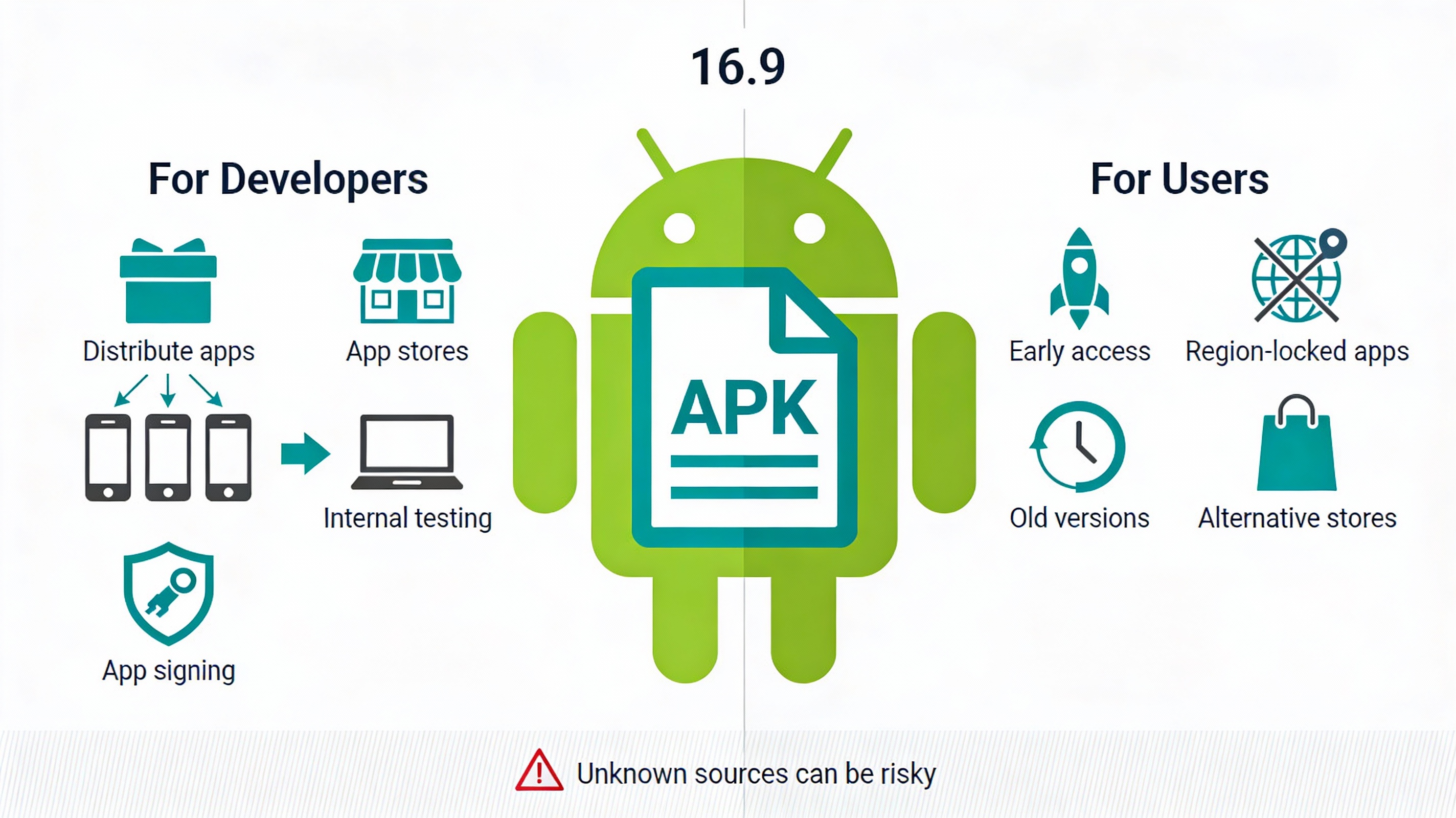
APK files exist to standardize how apps are packaged and installed on Android devices. They offer benefits both to developers and users.
For Developers
Developers need a consistent way to bundle their apps so that they can be distributed across different Android devices and versions.
Using the APK format allows them to:
- Distribute their apps through the Google Play Store or other app stores
- Offer direct downloads from their websites
- Test different versions of their apps internally before public release
- Sign apps with their unique developer keys for security and updates
For Users
For users, APK files give more flexibility and control over which versions of apps they install and where they get them from.
Some common reasons people install APKs manually include:
- Early access: Trying new versions of apps before they appear in the Play Store in their region.
- Region restrictions: Installing apps that are blocked or not yet released in their country.
- Old versions: Downgrading to a previous version of an app if a new update has problems or removes features.
- Alternative app stores: Using stores that offer different apps and deals.
While this flexibility is helpful, it also comes with responsibility, because installing APKs from unknown sources can be risky if you’re not careful.
Are APK Files Safe?
By themselves, APK files are just a format. They are not automatically safe or unsafe. The safety of an APK depends on where it comes from and whether it has been modified. Just like you wouldn’t download unknown programs on a computer, you should be cautious with APKs.
When APKs Are Usually Safe
APKs are generally safe when:
- You download them from official app stores like Google Play.
- You get them from reputable third‑party stores or well‑known developers.
- The file is signed by the original developer and hasn’t been altered.
Most modern Android devices also scan apps for harmful behavior using Google Play Protect or similar security tools.
Potential Risks of APK Files
Risks come from installing APKs from untrusted sources. Some dangers include:
- Malware or viruses: The APK may contain malicious code that steals data, shows unwanted ads, or damages your device.
- Modified (cracked) apps: These can be tampered with to include hidden tracking tools or harmful scripts.
- Privacy issues: Apps can request unnecessary permissions to access your contacts, messages, or files.
How to Check if an APK is Safe
Before installing an APK, you can take a few steps to reduce risk:
- Download from well-known websites or app stores with good reputations.
- Read user comments and ratings if available.
- Scan the APK with mobile antivirus software.
- Check the app’s permissions during or after installation and disable anything that seems unnecessary.
If something feels suspicious about a site or file, it’s better to avoid installing it. Your data and security are more valuable than any app feature.
Also Read: What is a Cross-Site Scripting Attack? Definition and Explanation
How to Install APK Files on Your Android Phone
Now that you understand what is APK and the potential risks, let’s look at how to safely install one on your device.
The exact steps can vary slightly depending on your Android version and phone brand, but the general process is similar.
Step 1: Allow App Installations from Unknown Sources
By default, Android blocks installs from outside the Google Play Store to protect users. To install an APK, you need to grant permission for
“unknown sources” or “install unknown apps.”
On Android 8.0 (Oreo) and Later
- Download the APK file using a browser (like Chrome) or a file manager.
- Try to open the APK file. A message will appear saying installation is blocked.
- Tap on Settings in that message.
- You’ll see an option like Allow from this source for the specific app (e.g., Chrome).
- Toggle it on to permit installations from that app.
From now on, that particular app (such as your browser) will be allowed to install APKs. You can turn this off again after you finish.
On Android 7.0 (Nougat) and Earlier
- Open the Settings app.
- Go to Security (or Lock screen & security depending on your device).
- Find and enable Unknown sources.
- Confirm the warning message.
This will allow installations from any app. For better security, consider turning this option off again after installing the APK.
Step 2: Download the APK File
Next, download the APK from a trusted source. Make sure:
- The website or store is reputable and widely used.
- You are getting the correct app and version (not a fake clone).
- The download link is secure (look for
https://in the URL).
The APK file will usually be saved in your Downloads folder unless you change the location.
Step 3: Open and Install the APK
Once the file is downloaded:
- Open your phone’s File Manager app.
- Navigate to the Downloads folder or wherever you saved the file.
- Tap on the APK file.
- Review the permissions the app is requesting.
- Tap Install.
After a few seconds, the app should be installed. You’ll see an option to Open it immediately or Done to return to your file manager.
Step 4: Disable Unknown Sources (Recommended)
To keep your device secure, it’s a good idea to disable the option you enabled earlier:
- On newer Android versions: Go back to Settings > Apps > [Browser or File Manager] > Install unknown apps and turn off Allow from this source.
- On older Android versions: Return to Settings > Security and disable Unknown sources.
This simple step blocks unwanted apps from being installed quietly in the background.
How to Uninstall an APK App
Removing an app installed via APK is just like removing any other app from your Android device.
- Open the Settings app.
- Go to Apps or Apps & notifications.
- Find and tap on the app you want to remove.
- Tap Uninstall.
- Confirm the action.
You can also long‑press the app icon on your home screen or app drawer and choose Uninstall if your device supports that shortcut.
Benefits and Drawbacks of Using APK Files
Understanding the pros and cons will help you decide when it makes sense to install APKs manually and when it’s better to stick with official stores.
Advantages of Installing APK Files
- Access to unreleased features: Try beta versions or newer releases before they reach your local Play Store.
- Bypass region locks: Install apps not yet available in your country.
- Downgrade problematic updates: Revert to older versions of an app if a new update causes bugs or removes features you need.
- Use alternative stores: Explore apps from other marketplaces that may not be on Google Play.
Disadvantages and Risks
- Security risks: APKs from untrusted sources can include malware.
- No automatic updates: Apps installed from APKs may not update automatically through the Play Store.
- Compatibility issues: Some APKs might not be optimized for your device or region, causing crashes or glitches.
- Potential policy violations: Using modified apps can break terms of service for certain services or platforms.
Use APK installations strategically and always weigh the benefits against the potential risks.
Best Practices for Using APK Files Safely
If you decide to install apps via APKs, following best practices helps keep your device and data safer.
1. Stick to Trusted Sources
Only download APK files from websites, stores, or developers with a solid reputation. Avoid random forums, file-sharing sites, or links sent by strangers.
2. Keep Your Device Updated
Make sure your Android system and security updates are current. Newer Android versions include better protection against harmful apps and behavior.
3. Use Security Tools
Enable tools like Google Play Protect and, if possible, use a reliable mobile security app to scan downloaded APK files before installing them.
4. Review App Permissions
Take a moment to look at the permissions an app asks for. If a simple game wants access to your contacts, microphone, and SMS, that’s a red flag. You can often deny certain permissions after installation in your device’s settings.
5. Remove APK Files After Installation
Once you’ve installed an app, you no longer need the original APK file. Delete it from your downloads folder to free up space and avoid confusion later.
Conclusion: Understanding What is APK and Using It Wisely
By now, you should have a clear idea of what is APK and how it fits into the Android ecosystem. An APK is simply the installation package for Android apps, containing all the files your device needs to run the app. It’s the format used behind the scenes every time you install something from the Play Store.
Installing APK files manually gives you more control and flexibility: you can access new features early, bypass regional restrictions, and choose the version of an app you prefer.
At the same time, it requires caution. Always download from trusted sources, review permissions, and keep your security tools active.
When you understand what is APK and follow safe installation practices, you can make the most of your Android device while keeping your data and privacy protected.
FAQs
1. What does APK stand for?
APK stands for Android Package Kit. It is the official file format that Android uses to package and install apps on smartphones and tablets.
2. Can I install an APK file on an iPhone?
No. APK files are designed specifically for Android. Apple’s iOS uses a different file format and system for apps, so you cannot install APKs on an iPhone or iPad.
3. Do I need to root my phone to install APK files?
No. You do not need to root your device to install an APK. You only need to enable the option to install apps from unknown sources or allow a specific app (like your browser)
to install unknown apps. Rooting is not required for this.
4. Why can’t I open an APK file on my phone?
If you can’t open an APK file, it may be because:
- Installation from unknown sources is disabled.
- The file is incomplete or corrupted.
- The APK is not compatible with your device or Android version.
Check your security settings, re-download the file from a trusted source, and try again.
5. Are APK files legal?
The APK format itself is legal, and many developers provide APK downloads directly from their official sites. However, downloading paid apps for free from unauthorized
sources or using modified apps can violate terms of service or local laws. Always respect intellectual property rights and the rules of the services you use.
6. How do I update an app installed via APK?
Apps installed via APK usually don’t update automatically through the Play Store. To update them, you must download the newer version’s APK from a trusted source
and install it over the existing app. In most cases, your data and settings will remain, but it’s wise to back up important information beforehand.